USB-C Wireless Keyboard & Mouse Combo for MacBooks
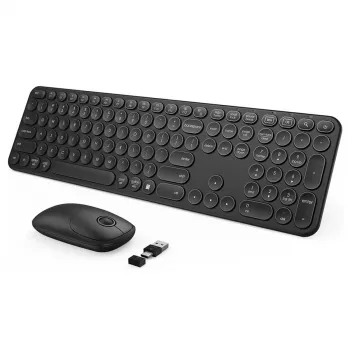
USB & Type C Wireless Keyboard and Mouse Combo for Apple MacBook Pro & Air
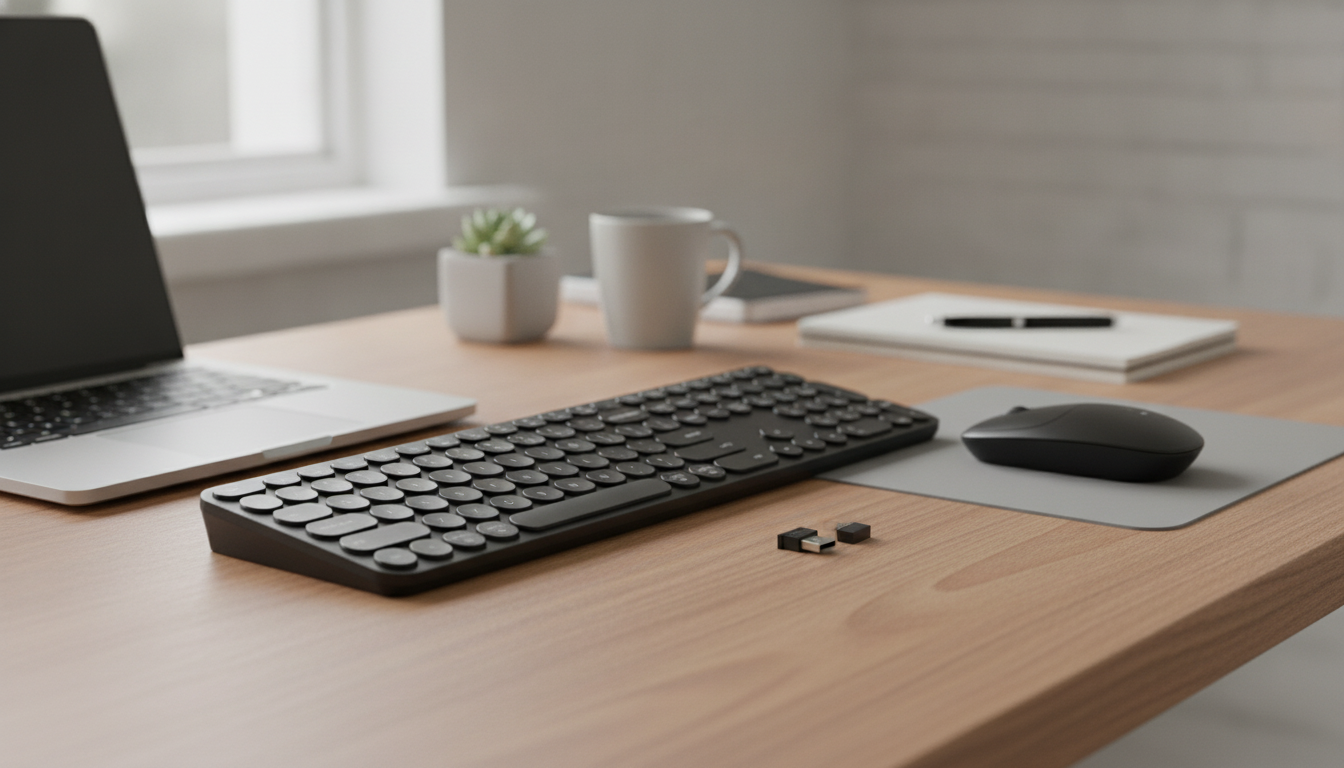
A wireless keyboard and mouse combo can make a MacBook Pro or MacBook Air feel like a full desktop setup—without a clutter of cables. This USB and Type‑C combo is designed to plug in quickly, keep connections stable, and stay comfortable for long work sessions at home, in the office, or on the go.
What this combo is built for
MacBooks are powerful, portable machines, but the built-in keyboard and trackpad can feel cramped during long writing sessions, spreadsheets, design work, or back-to-back meetings. A separate keyboard and mouse combo helps create a workstation that feels more like a desktop—while keeping your MacBook as the “brain” of the setup.
- Creates a more ergonomic, desk-friendly MacBook setup by moving the keyboard and mouse off the laptop.
- Supports modern MacBook ports with a Type‑C option while also covering standard USB use cases (helpful for docks, hubs, and older accessories).
- Reduces cable clutter and keeps a consistent input experience whether the MacBook is open, closed, or connected to an external monitor.
Recommended product for a cleaner MacBook workstation
If you want a receiver-based setup that can plug in fast and stay consistent day to day, start with the USB & Type C Wireless Keyboard and Mouse Combo for Apple MacBook Pro & Air. It’s a practical fit for home desks, office hot-desking, or a travel kit where you’d rather not manage pairing steps each time.
What’s included and how to set it up
Receiver-based wireless combos are popular because setup is typically simple: connect the receiver and begin using the keyboard and mouse right away. For MacBooks that live on USB‑C, a Type‑C receiver option helps avoid extra adapters. For desk docks and hubs, USB‑A can still be handy.
- Connect the receiver to a USB‑C port (or through a USB‑C hub/dock) to start using the keyboard and mouse without extra pairing steps.
- If using a standard USB‑A port (such as on a dock), connect via USB as needed.
- Adjust macOS settings for the best feel: keyboard repeat rate, modifier key mapping (Control/Option/Command), mouse tracking speed, and scrolling behavior.
| Step | Where to do it | Result |
|---|---|---|
| Plug in receiver (USB‑C or via hub) | MacBook port / USB‑C hub | Keyboard and mouse connect |
| Confirm input settings | System Settings > Keyboard / Mouse | Comfortable typing and cursor speed |
| Set modifier keys (if needed) | System Settings > Keyboard > Keyboard Shortcuts | Shortcuts feel natural on macOS |
| Test range at your desk | Normal working position | Stable connection without dropouts |
| Optional: enable Accessibility features | System Settings > Accessibility | Easier control (slow keys, mouse keys, etc.) |
MacBook Pro and MacBook Air compatibility notes
This kind of combo is most convenient on MacBooks that primarily use USB‑C for accessories. Many MacBook Pro and MacBook Air models fit that description, and it’s especially helpful if your MacBook stays connected to a display, hub, or docking station most of the time.
- Works best for MacBooks with USB‑C ports, including many MacBook Pro and MacBook Air models that rely on USB‑C for accessories.
- For MacBooks connected to an external monitor, the receiver can be plugged into a dock to keep the desktop clean and reduce cable strain on the laptop.
- If other wireless devices are nearby, keeping the receiver in a front-facing port on a hub can help maintain a steady signal.
If you also use Bluetooth devices, Apple’s support overview can help with general Mac input configuration and connection behavior: Apple Support.
Comfort and daily use
A separate keyboard and mouse can make long sessions feel noticeably less “compressed.” With a MacBook on a stand (or connected to an external monitor), your hands can stay at desk height rather than reaching up to the laptop’s built-in keyboard. That difference often shows up in shoulder tension, wrist angle, and overall endurance.
For broader workstation ergonomics guidance, OSHA’s computer workstation resources are a solid reference point: OSHA — Computer Workstations eTool.
A simple add-on for desk organization
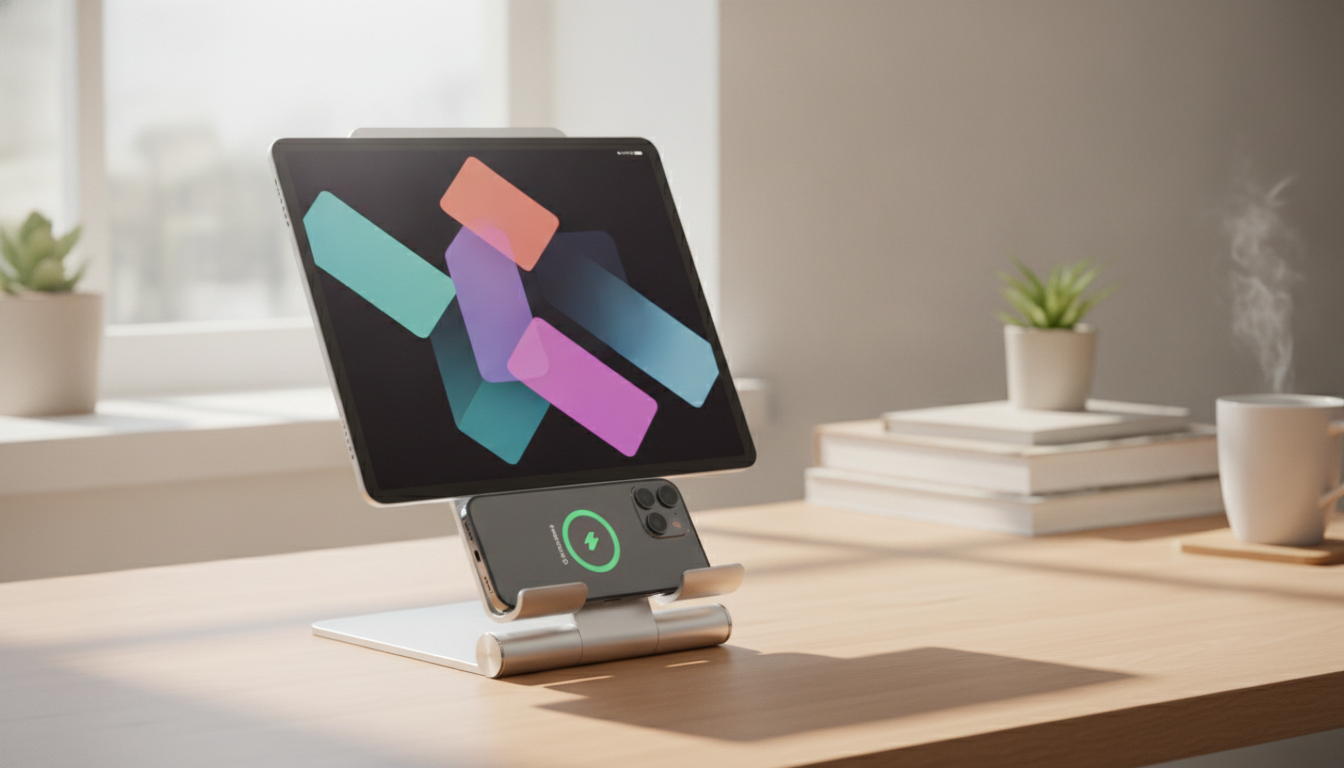
If your phone is part of your workflow (calls, calendar, authentication prompts), a mount can reduce desk shuffling. The 360° Magnetic Phone Holder for Apple iPhone can help keep your screen visible near your monitor while your hands stay on the keyboard and mouse.
Connectivity and reliability tips
For a deeper look at the connector standard itself (useful when comparing hubs, docks, and adapters), USB‑IF has helpful background: USB-IF — USB Type-C resources.
Care, cleaning, and longevity
When a USB‑C receiver combo is a better fit than Bluetooth
Another Apple-friendly accessory to round out a daily kit
For users who alternate between desk work and on-the-go time, small comfort upgrades matter. The Premium Handmade Leather Strap for Apple Watch 38mm-49mm is an easy way to refresh an everyday wearable without changing your routine.
FAQ
Will this work with both MacBook Pro and MacBook Air?
It should work as long as your MacBook can accept the receiver via USB‑C directly or through a USB‑C hub/dock. Once connected, you can fine-tune macOS keyboard and mouse settings for the most comfortable feel.
Do the keyboard and mouse need Bluetooth pairing?
Receiver-based wireless combos typically don’t require Bluetooth pairing. You usually just plug the USB/Type‑C receiver into your MacBook (or hub) and start using the keyboard and mouse.
What should be adjusted in macOS to make the keyboard and mouse feel right?
Common adjustments include keyboard repeat rate, modifier key mapping (Control/Option/Command), mouse tracking speed, and scrolling direction. Accessibility options can also help if you prefer slower keys, different pointer behavior, or alternative control methods.







Leave a comment